Finance
How to Compare Two Excel Files for Differences
Find every changed cell, added row, and shifted formula between two spreadsheets — without Excel's clunky Inquire add-in or a paid diff tool.
Two versions of a spreadsheet look identical until the one changed number breaks a total three tabs away. Finding it by eye across thousands of cells is hopeless, and Excel's own comparison tools are surprisingly hard to reach — the Spreadsheet Compare utility only ships with specific enterprise editions, and the Inquire add-in isn't enabled by default. Here's a faster way to diff two spreadsheets and see every difference at once.
Compare two spreadsheets in the browser
- Open the Compare Spreadsheets tool.
- Load the old version on the left and the new version on the right. XLSX, XLS, and CSV all work.
- Changed cells are highlighted, added rows marked, and removed rows struck through — so you jump straight to what moved.
The differences that matter most
- Changed values — a single edited figure that quietly changes a downstream total.
- Inserted or deleted rows — these shift everything below and are the usual cause of a reconciliation that no longer ties out.
- Reordered data — the same rows in a different order, which a naive line-by-line diff would wrongly flag as thousands of changes.
Match by key, not by position: when rows can move, comparing row 5 to row 5 is meaningless. Comparing by a stable identifier — SKU, invoice number, employee ID — catches the real changes and ignores reordering. That's the difference between a useful diff and a wall of false positives.
CSV exports from different systems
A common real-world job is reconciling two exports of the same data — a system report versus a physical count, or this month's export against last month's. CSVs are plain text, so they compare cleanly, but watch for cosmetic differences (quoting, date formats, trailing spaces) that aren't real changes. A structure-aware comparison focuses on the values in each cell rather than raw text, which cuts through that noise.
Formulas vs. values
Decide up front whether you care about the formula or the result. Two cells can show the same number while one is hard-coded and the other is a live formula — a meaningful difference when you're auditing a model, irrelevant when you're checking outputs. Know which question you're asking before you start.
Financial spreadsheets are sensitive, so it matters that the file is read locally in your browser and never uploaded to a server.
For budgets, monthly reports, and bank exports, the finance comparison tools apply the same private, in-browser approach to every spreadsheet you work with.
Why Excel's own comparison is hard to reach
People assume Excel can diff two workbooks out of the box. It can't, not easily. The dedicatedSpreadsheet Compare application ships only with Office Professional Plus and Microsoft 365 Apps for enterprise — not with Home, Personal, or the web version. The Inquire add-in that powers it is disabled by default and has to be enabled through File → Options → Add-ins → COM Add-ins. And none of it exists on Mac at all. So the "built-in" answer is really "built into one specific Windows edition you may not have," which is why a browser tool that works anywhere is often the faster route to the same result.
Multiple sheets and hidden tabs
Real workbooks have several tabs, and changes hide in the ones you don't look at. When you compare two versions, check every sheet — including hidden ones, which are a common place for a stray edit or an orphaned assumption to live. A changed value on a lookup or reference tab can quietly reroute a formula on the sheet you actually care about, so a difference that looks trivial in isolation can be the source of a total that no longer ties out.
A practical spreadsheet-diff checklist
- Compare by a stable key column (SKU, invoice number, employee ID) rather than by row position, so reordered data doesn't read as thousands of false changes.
- Normalise obvious cosmetic differences first — date formats, trailing spaces, and currency symbols — so they don't drown out the real edits.
- Decide whether you're auditing formulas or results, and stick to that question throughout.
- Review inserted and deleted rows before changed cells; a shifted row is what usually breaks a reconciliation.
- Sweep every tab, hidden ones included, before you declare two workbooks identical.
Beyond spreadsheets: reconciling exported data
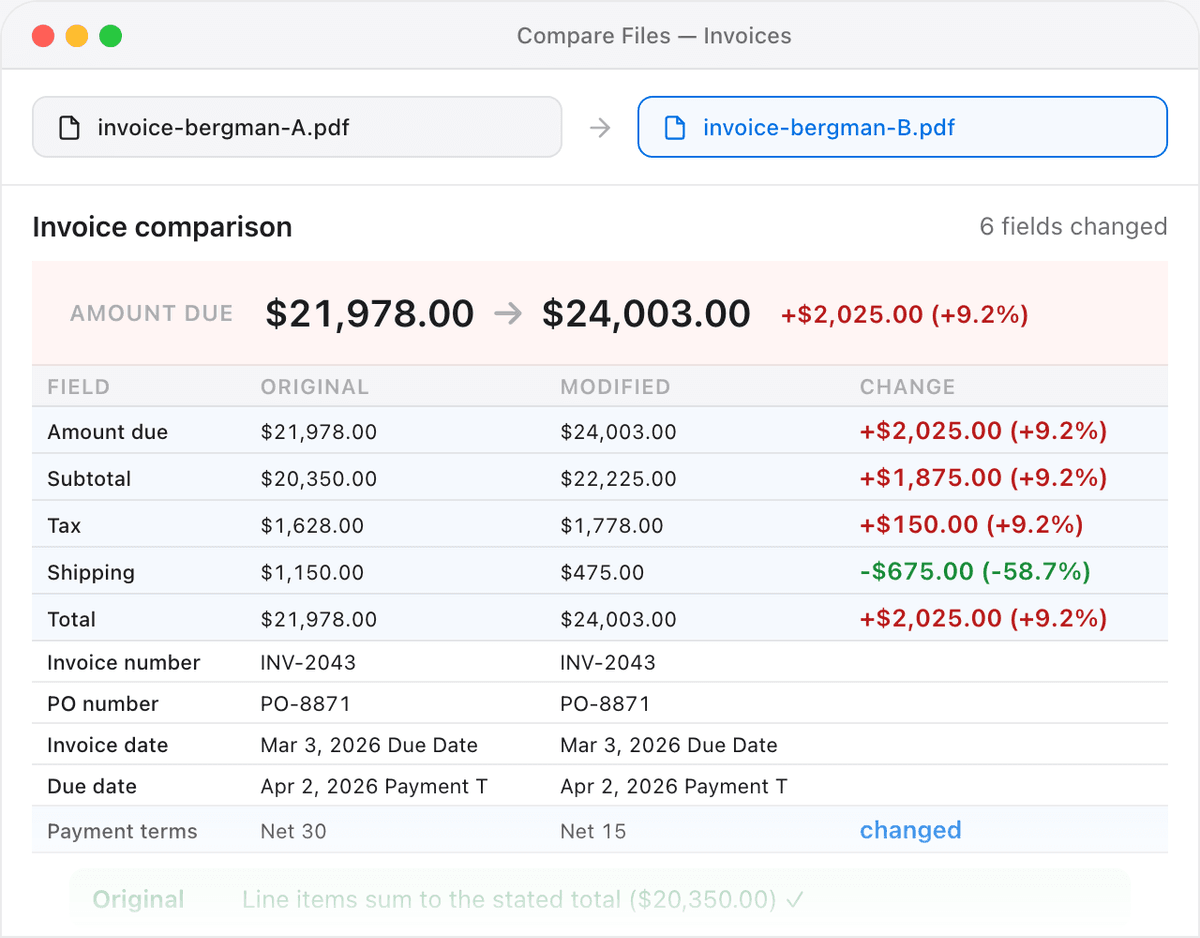
The same skills apply well beyond finance. Warehouse stock counts, CRM exports, and system reports are all just tables, and comparing this period's export against last period's is a spreadsheet diff by another name. If the numbers you're reconciling live on invoices rather than in a workbook, the invoice comparison tool applies the same value-level matching to line items and totals — see our guide on comparing invoices before payment for that workflow.
Frequently asked questions
How do I compare two Excel files for differences?
Open the Compare Spreadsheets tool, load the old version on the left and the new one on the right, and read the highlighted cells. XLSX, XLS, and CSV all work, and nothing is uploaded — the comparison runs locally in your browser.
Does Excel have a built-in compare feature?
Only in a limited way. The Spreadsheet Compare tool ships with certain enterprise Windows editions and relies on the Inquire add-in, which is off by default and unavailable on Mac. For everyone else, a browser-based diff is the practical option.
How do I compare two CSV files without them showing false differences?
Use a structure-aware comparison that looks at cell values rather than raw text, and match rows by a key column instead of position. That ignores harmless differences in quoting, date formats, and row order so you only see genuine value changes.
Can I spot inserted or deleted rows between two spreadsheets?
Yes. Added rows are marked and removed rows struck through. Reviewing these first is worthwhile because an inserted or deleted row shifts everything below it and is the most common reason a reconciliation stops tying out.
Are my spreadsheets uploaded to a server?
No. Financial spreadsheets are read locally in your browser and never uploaded, so bank exports, payroll figures, and pricing data stay on your machine.